
MiniMax H3 Character Swap: Local ComfyUI vs. Hosted Browser Workflows
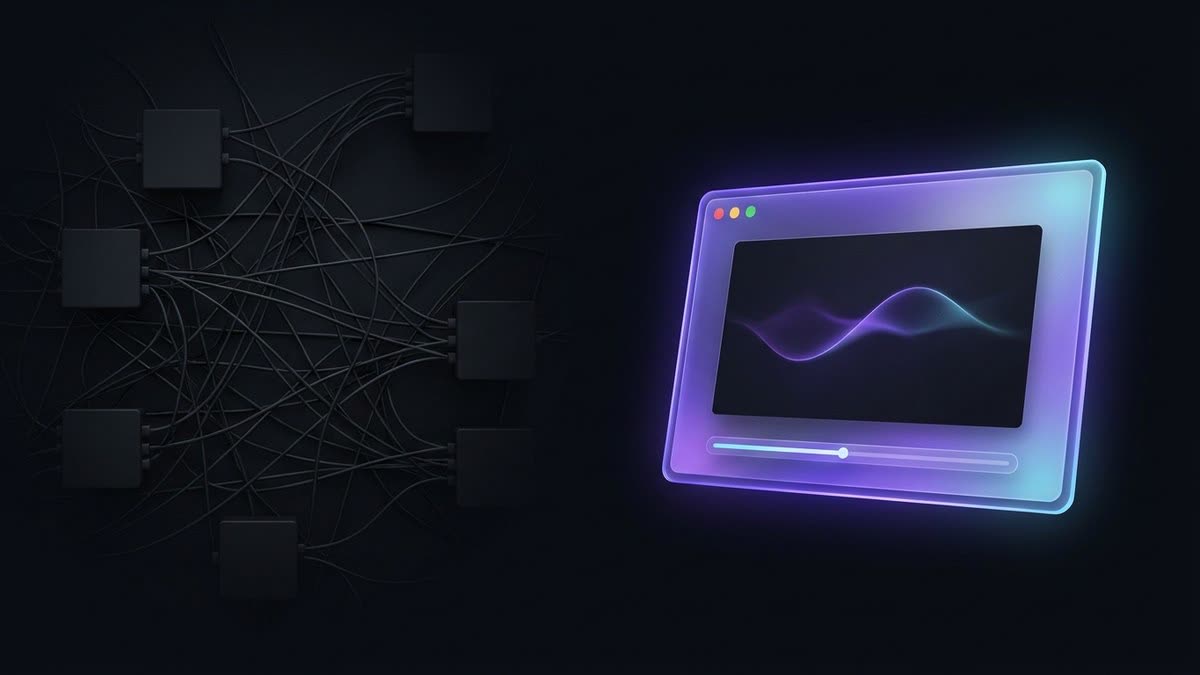
Quick answer: Running MiniMax H3 locally gives you open-source control if you own a 24GB+ GPU, while our browser-based AI video character swap tool is an independent hosted alternative for creators who just want a finished character swap fast: trim locally, upload 1 or 2 photos, keep your original soundtrack automatically, and use pay-as-you-go credit packs starting at $6.99 with no watermark.
Recent demos around MiniMax H3 character swap and open-source motion transfer models triggered a wave of YouTube tutorials and Reddit threads promising "free local character replacement." If you have tried setting one up yourself, you already know the gap between a 10-minute showcase video and actually shipping a clean clip.
If your real goal is straightforward—you already have a short video clip on your device, you have one or two character photos, and you want a clean MP4 with the original audio intact—this guide compares running a local MiniMax H3 / ComfyUI pipeline against a hosted browser workflow so you can pick the faster, more cost-effective option.
The hidden cost of local MiniMax H3 and ComfyUI character swap workflows
Open-source and local MiniMax H3 character swap graphs are impressive for experimentation, but they carry real hidden costs that rarely show up in demo threads:
- Heavy GPU requirements: high-resolution video diffusion models typically demand an RTX 4090 (24GB VRAM) or a rented cloud GPU pod billed by the hour—often costing more per finished clip than pay-as-you-go cloud rendering once you factor in idle and failed runs.
- Fragile ComfyUI dependencies: a working graph relies on exact custom-node commits, matching CUDA and PyTorch versions, pose preprocessors, and manually downloaded multi-gigabyte checkpoints. One node update can stall a workflow for hours.
- Keeping original soundtracks vs. model-generated audio: while newer local weights like MiniMax H3 Ref2VA can synthesize audio alongside video, preserving your source clip’s exact original song or dialogue without re-synthesis still requires a separate FFmpeg or editor remux pass in most ComfyUI graphs.
- Two-person masking overhead: swapping two people cleanly in one clip usually requires manual masking, multi-branch node wiring, and careful identity separation.
Side-by-side comparison: Browser AI Character Swap vs. Local ComfyUI / MiniMax H3
Here is how the two workflows compare on the practical factors that determine whether you finish a video today:
| Factor | AI Character Swap (Browser) | Local ComfyUI / MiniMax H3 |
|---|---|---|
| Best for | Fast custom clip swaps (1–2 people) | Technical R&D, custom LoRAs & batch experiments |
| Setup time | Under 60 seconds in any browser | Hours of GPU, CUDA, checkpoint & node setup |
| Hardware needed | Any phone or laptop | 24GB+ VRAM GPU or hourly cloud pod |
| Original audio | Source soundtrack merged automatically into MP4 | Synthesized audio (Ref2VA) or manual FFmpeg merge for original track |
| Two-person swap | Built-in Left / Right photo slots | Manual masking & multi-branch node graphs |
| Pricing | Pay-as-you-go from $6.99 (no subscription) | GPU hardware depreciation or cloud pod hours |
- Zero environment maintenance: AI Character Swap runs in any mobile or desktop browser with local trimming and zero installs—no Python virtual environments, CUDA mismatches, or broken custom nodes.
- Automatic audio preservation: AI Character Swap automatically merges the original clip’s soundtrack into your finished MP4, keeping dance beats and dialogue locked in sync.
- Transparent pay-as-you-go pricing: one-time credit packs start at $6.99 (credits never expire, no watermark, no subscription required), plus optional monthly or yearly plans for higher volume. See Pricing for exact rates.
- Privacy & local prep: video trimming and photo staging happen locally in your browser and nothing is uploaded until you click Generate. Saved cloud media auto-deletes after 30 days, or anytime on request from My videos.
When to use local ComfyUI vs. a browser workflow (honest recommendation)
Neither workflow wins for every creator. Choose the setup that fits what you are actually doing:
- Choose local ComfyUI / MiniMax H3 if you already own a 24GB+ GPU, enjoy tweaking sampler steps, ControlNets, and LoRA weights, or generate hundreds of experimental clips per week for technical R&D.
- Choose browser-based character swap AI (or our dedicated motion transfer AI workflow) if you already have a source video clip, want to swap 1 or 2 full characters cleanly with original audio intact, and want a finished watermark-free MP4 in minutes without managing GPUs. New to the workflow? Follow our step-by-step guide on how to replace a person in a video with AI.
How to set up and start your character swap in under two minutes
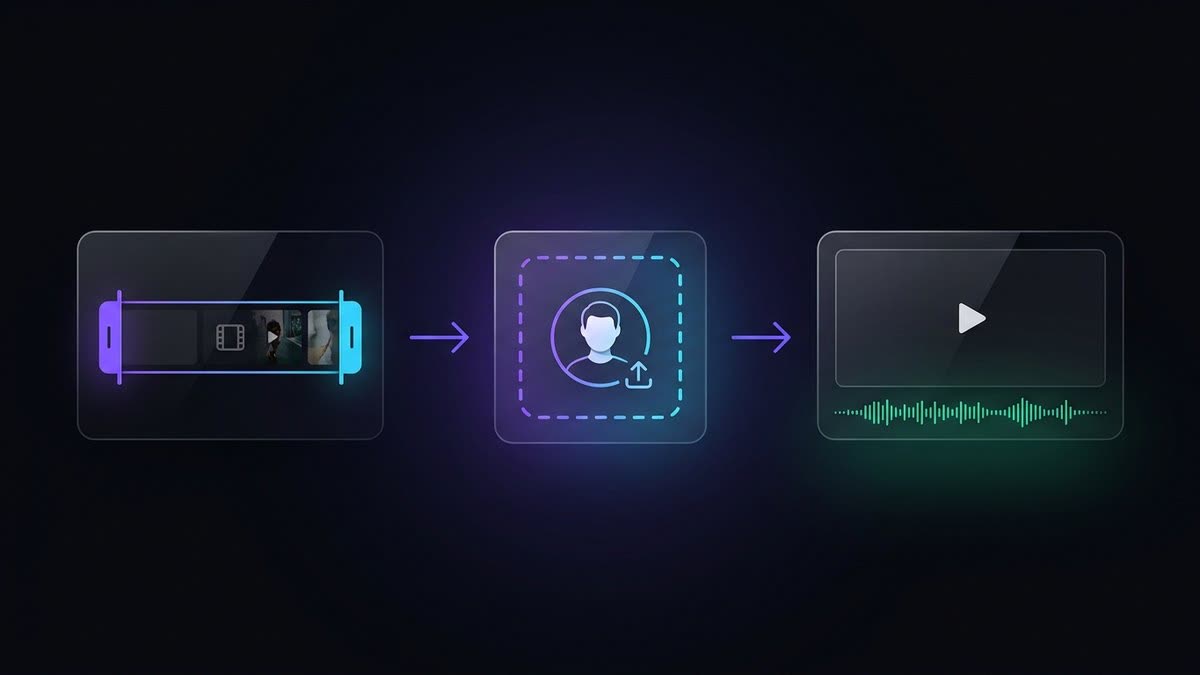
- Save your source video locally. Export or save your MP4, MOV, or WebM clip to your phone or computer. If your clip is longer, use the built-in browser trimmer to scrub and pick the exact window without opening an external editor.
- Prepare a clean character reference image. Use a sharp, evenly lit picture or portrait of the character you want to insert. Avoid heavy filters, sunglasses, or cluttered group backgrounds.
- Test at 480p before exporting 720p HD. Because 480p uses 1 credit and 720p HD uses 2 credits, you can validate motion and likeness on a complex clip for 1 credit, then reuse the saved clip for your final 720p HD export.
- Reuse your best source clips across characters. Every source clip you render from stays saved in your account for 30 days. Instead of re-uploading and re-trimming the same 10-second choreography every time you want a new character version, pick the saved clip, swap in a fresh reference photo, and start a new variation in seconds.
Audio sync, aspect ratios, and usage rights
One of the biggest practical differences between a hobbyist node graph and a hosted web tool is finishing quality. On AI Character Swap, your source video is automatically matched to the closest supported aspect ratio (9:16 vertical for TikTok/Reels/Shorts, 1:1 square, or 16:9 widescreen—with manual override available in Format), and the original soundtrack is merged back into the final MP4 with zero manual timeline alignment.
Before publishing any swapped clip commercially or on monetized social channels, always confirm you have rights to the source footage, the reference likeness, and any background music track.
Frequently asked questions
Is AI Character Swap affiliated with MiniMax?
AI Character Swap is an independent browser-based video character swap service and is not affiliated with or endorsed by MiniMax.
Do I need a 24GB GPU or ComfyUI installed to use AI Character Swap?
Not at all. All AI rendering runs in the cloud. Your browser only handles lightweight local clip trimming and previewing, so it works on any modern laptop or smartphone.
Do I need a monthly subscription to remove watermarks?
A subscription is completely optional. Every one-time credit pack (starting at $6.99) produces watermark-free MP4 exports with original audio preserved.
What if my swapped video fails to render?
Failed, rejected, or stalled generations automatically return their credits to your balance—you do not need to open a support ticket.
Can I swap two characters in one video without manual masking?
Yes. Select Two People during clip preparation and upload a left photo and a right photo. No manual masking or node wiring is needed.