
How to Replace a Person in a Video with AI (Step-by-Step Guide)
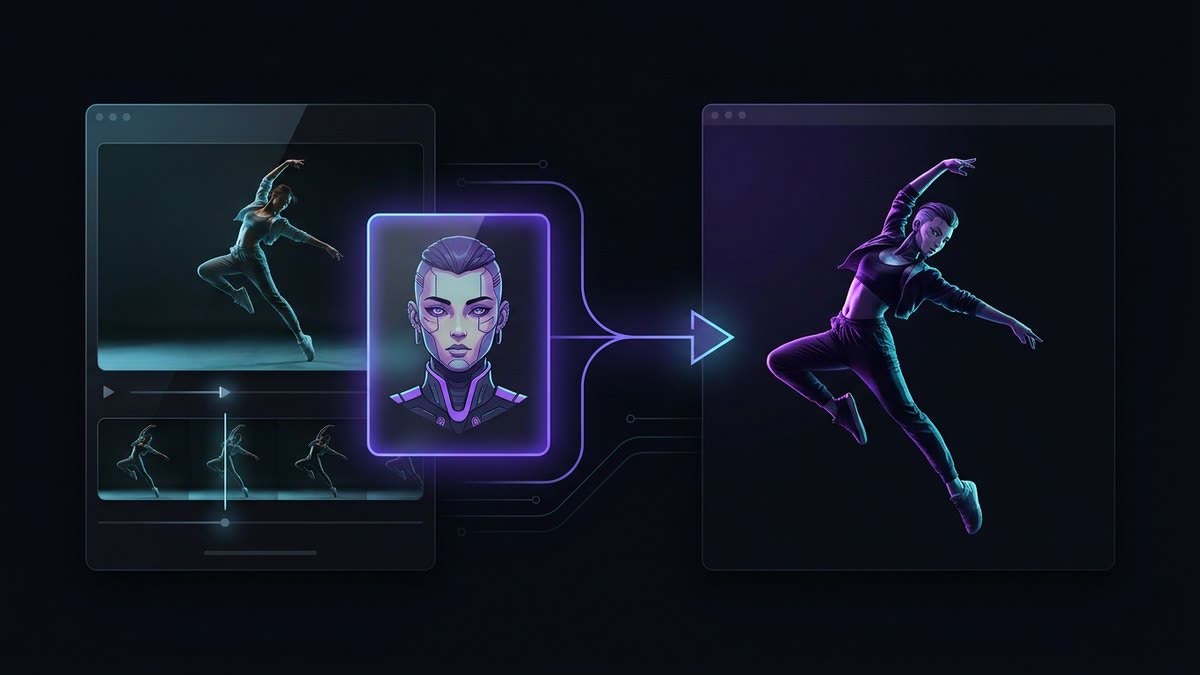
Quick answer: To replace a person in a video with AI, upload an MP4, MOV, or WebM clip into AI Character Swap, trim the cleanest window locally in your browser, add one clear reference photo per performer (1 main person or 2 people left/right), choose your resolution, and click Generate. Your original audio is merged automatically into the finished MP4.
Replacing a person in an existing video used to require a VFX compositor, frame-by-frame rotoscoping, clean-plate reconstruction, and a 3D tracking pipeline. Even with early AI tools, most creators were stuck with basic video face swappers that pasted a new face onto the original performer’s head while leaving their hairstyle, body proportions, and clothes untouched.
Modern full-body AI character replacement changes that workflow completely. Instead of masking a face, the model uses your source clip to guide motion, camera movement, and lighting, then renders a new person—head, hair, outfit, and body—directly into the scene from a single reference image. In this guide, you will learn the exact step-by-step process to replace one or two people in a video cleanly, how to avoid the mistakes that cause flickering or identity drift, and when to use AI motion transfer for choreography-heavy clips.
Full-body person replacement vs. traditional video face swap
Before you upload your first clip, it helps to distinguish between two very different AI video techniques that often get conflated in search results: face swapping and full-character swapping.
A video face swap detects facial landmarks on every frame and warps a target face inside that boundary. It is fast and works reasonably well when the original actor and the target person share the exact same hairstyle, build, skin tone, and wardrobe. The moment those attributes diverge—for example, putting a person in a leather jacket into a clip where the original dancer wore a bright hoodie—face swap immediately looks artificial because the neck, hair silhouette, and clothing belong to someone else.
Full-body character replacement (using AI video character swap) replaces the whole person. It keeps the original body timing, hand gestures, camera angle, background, and soundtrack, while putting your character photo’s face, hair, and outfit naturally into the shot. That makes it a much better fit for dance clips, comedy skits, music video hooks, and stylized characters. If you are weighing browser tools against local GPU pipelines, see our MiniMax H3 character swap workflow comparison.
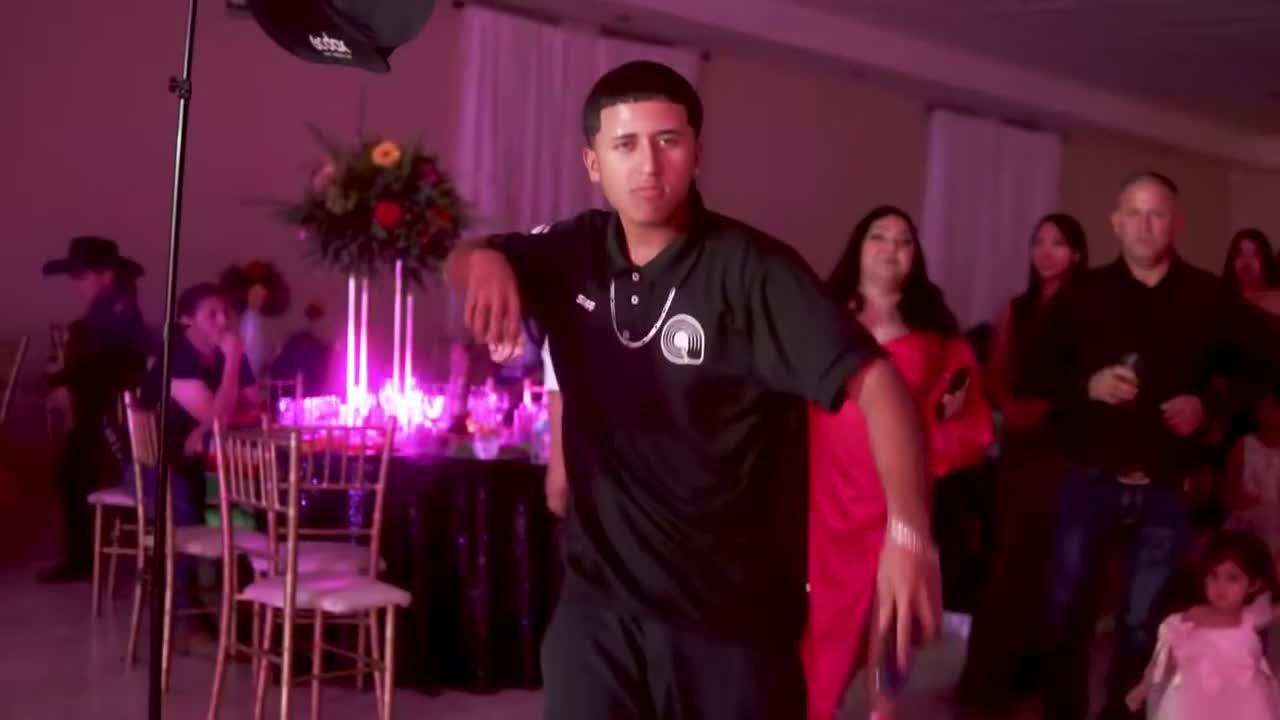


Real production output: the source dance video drives the choreography and camera while the uploaded character photo replaces the full performer—hair, face, and leather jacket.
What you need before starting
You do not need a green screen, a motion-capture suit, or a desktop editing suite. All preparation happens inside your phone or laptop browser. Make sure you have these three things ready before opening the generator:
- A source video file (MP4, MOV, or WebM) stored on your device. Longer videos are fine—you can trim the exact section locally before anything is uploaded.
- One clear reference photo for a solo performer, or two separate photos if you are replacing two people positioned clearly on the left and right sides of the frame.
- Permission to use both the footage and the likenesses. Never upload minors without guardian consent, non-consenting individuals, or restricted material.
Step-by-step: how to replace a person in a video with AI
- Upload and trim your clip locally. Open our online character swap AI tool and drop your MP4, MOV, or WebM file into the source video slot. Use the timeline trimmer to isolate the cleanest take. Everything—including playback previewing and trimming—runs locally in your browser, so nothing is uploaded to a server while you experiment.
- Choose 1 person or 2 people. In the right-hand studio panel, choose One person if your clip focuses on a single main subject, or Two people if you want to recast a side-by-side duo. Replacing two people uses the exact same credit allowance as replacing one.
- Add your character reference photo(s). Right below the performer selector, upload a sharp, well-lit image of the replacement person. For two-person clips, assign the Left person slot to the performer on the left side of the frame and the Right person slot to the performer on the right.
- Select resolution and click Generate. Pick 480p (1 credit) for fast iteration or 720p HD (2 credits) for publish-ready clarity. When you click Generate, the studio verifies your Google sign-in and credit balance first—only then are your trimmed clip and photos uploaded. If you need to buy credits, your local draft stays saved for 24 hours across Stripe checkout.
- Download your swapped MP4 with original audio. Once rendering completes, the original audio track from your trimmed clip is automatically merged into the output MP4. Preview and download the watermark-free result right in the studio (or anytime later in My videos), or reuse your source clip from Saved clips with a different character photo.
How to replace two people in the same video without mix-ups
Recasting a two-person dance duet or comedy sketch is one of the highest-impact ways to use AI character replacement, but two-subject clips require tighter source selection than solo clips.
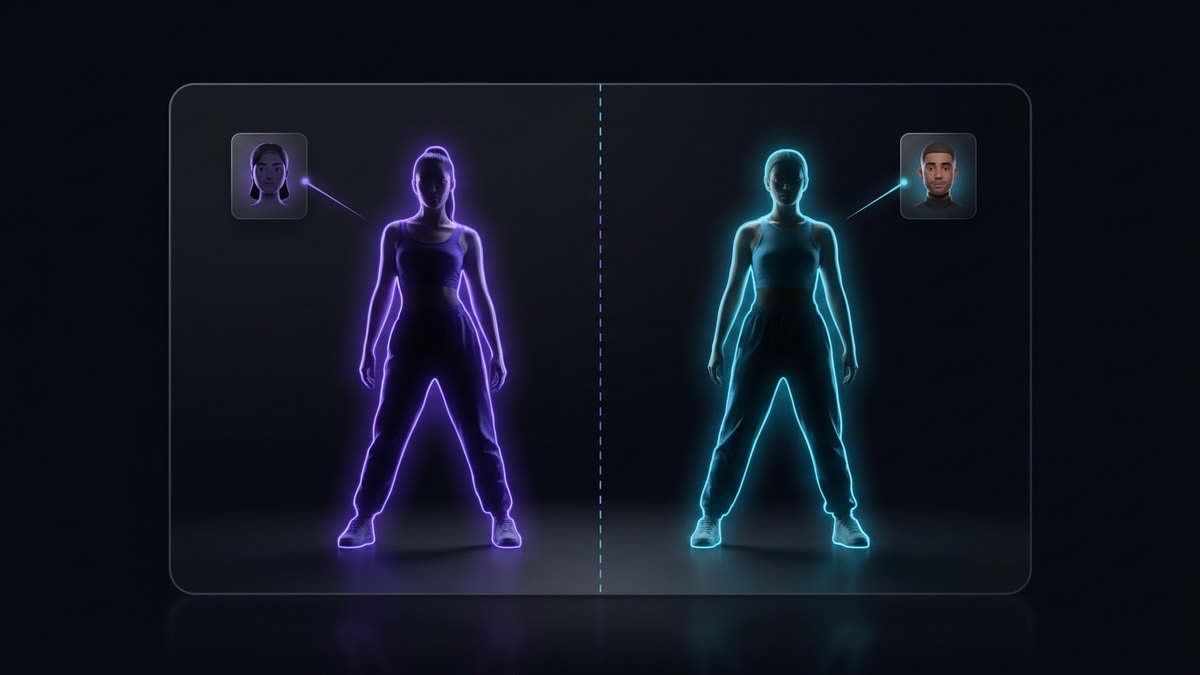
Because the model maps your left photo to the person standing on the left and your right photo to the person on the right, spatial separation matters. Pick a segment where both performers remain clearly visible side by side for the entire duration. Avoid moments where they spin behind each other, cross from left to right, or get partially cut off at the edges of the screen. When both subjects stay cleanly separated, the model maintains distinct faces, hairstyles, and outfits across every frame.
Common mistakes that waste credits (and how to fix them)
Most disappointing AI video swaps are caused by avoidable input issues rather than the underlying model. Before spending credits, run a quick 15-second check against these five failure modes:
- Rapid jump cuts inside the trimmed window: A single continuous camera take tracks much more cleanly than a TikTok edit with four hard cuts in ten seconds.
- Heavy foreground occlusion: If someone walks in front of the main performer, or if the performer hides behind furniture or large props, the model has to guess the hidden body parts.
- Extreme dark or neon club lighting: Harsh magenta/blue strobes confuse skin-tone matching. Well-lit daylight, ring lights, or even indoor lighting yield much sharper facial identity.
- Tiny or heavily filtered reference photos: Avoid group photos, sunglasses, extreme side profiles, or blurry screenshots. Use a crisp front-facing portrait or three-quarter body shot.
- Expecting scene or object edits: Character swap is built to replace performers—not to swap backgrounds, change weather, or edit handheld objects.
Pricing, retries, and privacy expectations
Local video trimming and photo staging are always free. When you are ready to render, credit packs start at $6.99 with no subscription required and no watermark on any output. One-time credits never expire.
If a generation fails, gets rejected by the provider, or stalls past 3 hours, your credits return automatically to your balance. Originals, photos, and finished videos are stored privately with 30-day automatic deletion, and you can delete all saved media anytime from My videos.
Frequently asked questions
Can I replace a person in a video from my phone?
Yes. AI Character Swap runs directly in mobile and desktop browsers. Select a video from your camera roll, trim the section you want locally, add a photo, and generate.
Does replacing a person keep the original music and dialogue?
Yes. After the video renders, we automatically merge your trimmed clip’s original soundtrack into the finished MP4. Silent source clips remain silent.
How long can my video be?
Standard generations currently process clips from 4 to 15 seconds. You can upload a longer file from your device and pick the exact section you want in the browser trimmer.
Can I test multiple characters on the same video clip?
Yes. Every clip you generate from stays in your Saved Clips library, so you can select it again and drop in new photos without uploading the video a second time.
Is there a free trial or free signup credit?
Preparing, trimming, and previewing your clip locally is free. Generating a video uses credits—there are no free signup credits, and failed generations return credits automatically.